
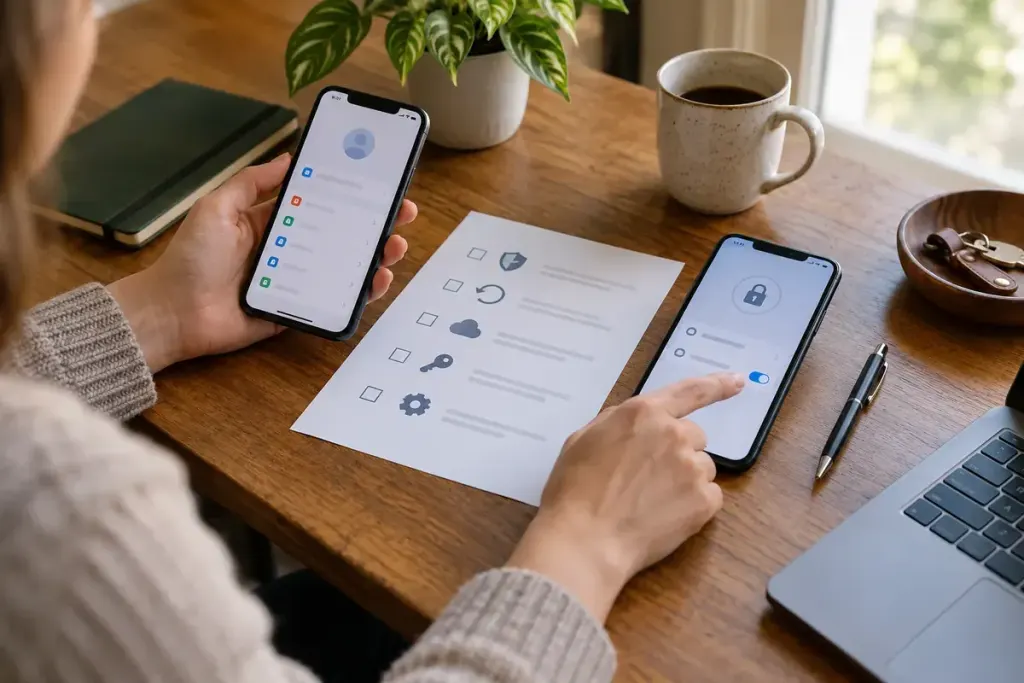
A new phone can have the same wallpaper and apps while still missing something important: the ability to generate the verification codes for your accounts. Installing an authenticator app does not, by itself, prove that its existing entries have moved.
Google’s Authenticator guidance describes account synchronisation and a manual transfer process. Other authenticator apps have different backup and recovery arrangements. Follow the documentation for the product you actually use.
Check the migration while both devices are available
First identify which accounts rely on the app. A password manager or your own account list may help, but do not put passwords, recovery codes or setup secrets into an ordinary shared checklist.
Use the supported transfer or restore method, then check that the expected entries appear. Test access to important services through their genuine websites or apps while keeping a working recovery route. A familiar account label is helpful, but a successful sign-in confirms more than the label alone.
Do not send an export QR code to yourself through a public chat or include it in a troubleshooting screenshot. Such material can contain the secrets needed to generate future codes. Treat it as sensitive account-access information.
Plan for losing the phone, not only replacing it
Review each service’s recovery options and store any recovery codes securely according to that service’s instructions. Cloud synchronisation can make migration easier, but it also makes the security and recoverability of the synchronising account important.
If an entry is missing, use the service’s official recovery process rather than repeatedly changing settings at random. Work on one account at a time so that you know which access route has been verified.
Only erase or dispose of the old device after the migration and your recovery arrangements have been checked. This is not a guarantee against every lockout; it is a practical way to avoid discovering an incomplete transfer after the one working device is gone.