
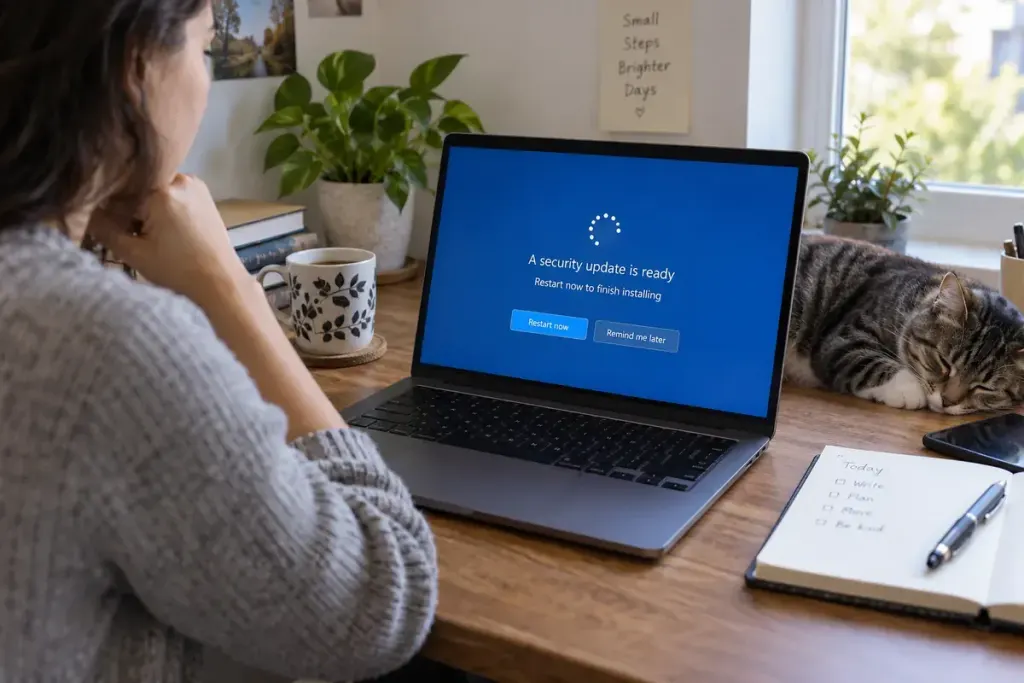
The download reached 100 percent yesterday, but the device still says a restart is required. Those messages describe different stages. Downloading an update does not always mean the new software is already running.
CISA’s software-update guidance explains that updates can repair security weaknesses and encourages prompt installation. The practical habit is to follow the device’s official update process through to its final confirmation.
A short completion check
- Open the update settings through the operating system or application itself.
- Read whether the update is downloaded, installing, awaiting a restart or complete.
- Save work and follow the official restart instructions when required.
- Return to the update screen afterwards and confirm the reported status.
Do not use a pop-up advertisement as the route to an update. If a browser page claims that your device is dangerously out of date, close the page and check through the trusted settings or vendor channel instead.
For a work-managed device, follow your organisation’s process. A centrally controlled update may have a maintenance schedule or require the device to remain connected. Report a repeated failure with the exact error message rather than attempting unrelated repairs.
Make room for the restart
Choose a sensible point when you can save documents and allow the process to finish. Keep the device on the power source recommended by its manufacturer. Repeatedly postponing a restart because it is inconvenient can leave an update unfinished for far longer than intended.
Check applications as well as the operating system, using their own approved channels. Automatic updates help, but an occasional status check can reveal a failed installation or a device that is no longer supported.
The useful result is a confirmed installed state, not a reassuring progress bar remembered from yesterday. If the status remains unclear, use the vendor’s support instructions for that exact device and error.