
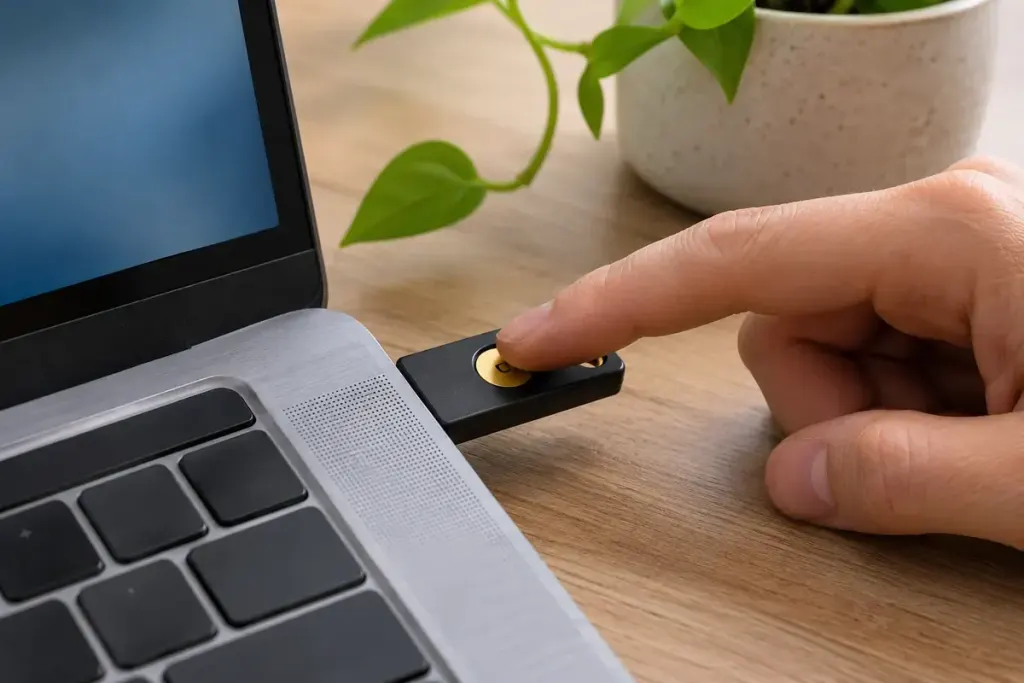
When a sign-in screen asks you to touch a security key, it may be asking for evidence that someone is physically present. It is not automatically checking whose finger touched the device.
This distinction is easy to miss because both actions can involve the same small surface. An ordinary touch sensor can acknowledge user presence. A biometric sensor, in a supported verification flow, can compare a fingerprint with an enrolled template. The hardware, application and authentication request determine which operation is being performed.
Yubico’s documentation for its Bio series makes the distinction explicit: the sensor can operate in plain-touch mode, where it does not read the fingerprint, or in fingerprint-verification mode. The word Bio on the product therefore does not mean that every touch in every workflow is a fingerprint check.
Read the prompt in context
Before enrolling a key, check the service’s instructions and the exact model’s capabilities. A request for a key PIN, a fingerprint prompt and a request to touch the key can form different parts of a sign-in sequence. Do not assume one replaces another simply because a previous website asked fewer questions.
For example, a person may touch a key to approve one account’s login and use a fingerprint with another application. That difference does not necessarily indicate a malfunction. It is a reason to check which authentication method each application supports.
Prepare for the day the key is unavailable
Follow the account provider’s recovery guidance while you still have access. Register a supported spare method where appropriate and store recovery information securely. Test that you can identify the correct key in account settings before removing an old one.
Most importantly, treat an unexpected request to touch a key as a request to examine the sign-in in front of you. Physical presence is a useful security property, but it is not a substitute for knowing which account and action you intended to authorise.